The CFB 26 Team Builder Guide is your complete resource for creating and customizing teams in EA Sports College Football 26. This powerful feature lets you design everything from team logos and uniforms to rosters and playbooks, giving content creators endless opportunities for unique dynasty mode experiences.
Team Builder transforms how you play College Football 26. Instead of sticking with existing teams, you can build authentic recreations of smaller schools, create fictional powerhouses, or design completely original programs. For streamers and content creators, this opens doors to engaging series that stand out from standard gameplay.
This guide walks you through every aspect of Team Builder, from your first steps to advanced customization techniques that’ll make your teams look and play professionally.
What You’ll Learn
- How to access and navigate the CFB 26 Team Builder interface
- Step-by-step instructions for creating custom teams from scratch
- Uniform design strategies that make your teams visually distinctive
- How to integrate custom teams into CFB 26 dynasty mode teams
- Content creation tips for showcasing Team Builder creations
- Advanced customization techniques for authenticity and uniqueness
What Is Team Builder in CFB 26?
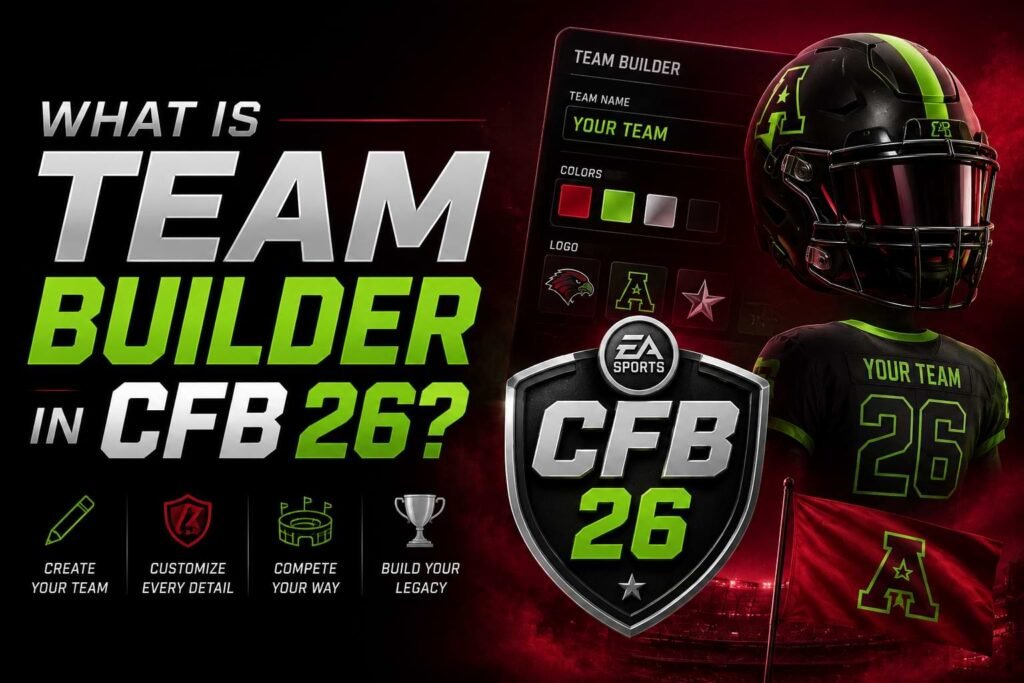
Team Builder is a comprehensive creation suite within EA Sports College Football 26 that lets you design custom teams from the ground up.
Think of it as a complete program-building toolkit. You control every visual element—logos, colors, uniforms, helmets, and fields. You also manage team identity factors like mascots, fight songs, and stadium atmospheres.
The feature goes beyond cosmetics. You can set coaching philosophies, assign playbooks, and establish team strengths that affect gameplay. This depth makes Team Builder valuable for recreating real teams not licensed in the game or inventing completely fictional programs.
For content creators, Team Builder solves a major challenge: differentiation. When thousands of streamers play the same game with the same teams, your custom creations become your brand signature.
Why Team Builder Matters for Dynasty Mode
Custom teams integrate seamlessly into dynasty mode, the career simulation where you build programs over multiple seasons. CFB 26 dynasty mode teams can include your creations alongside official schools.
This integration means your custom team competes for recruits, plays in conference championships, and pursues national titles just like established programs. The narrative possibilities are endless—turning a fictional start-up into a powerhouse makes for compelling content.
How to Access Team Builder
Accessing Team Builder depends on whether you’re using the in-game editor or the web-based platform.
In-Game Access:
Navigate to the main menu and select “Customize.” From there, choose “Team Builder” to open the creation interface. The in-game version provides immediate access but may have limitations compared to the web platform.
Web Platform Access:
EA typically hosts Team Builder on their official website. Create an EA account or log in with existing credentials. Link your account to your CFB 26 game profile to ensure your creations sync properly.
The web platform usually offers more detailed editing tools and easier sharing with the community. Many content creators prefer it for initial design work before finalizing in-game.
System Requirements and Account Setup
Make sure your EA account has proper verification. Two-factor authentication may be required for Team Builder access. This security measure protects your creations from unauthorized changes.
Your console or PC must connect to EA servers for Team Builder functionality. Offline creation isn’t available since the feature relies on cloud saving and community sharing.
Creating Your First Custom Team
Start with the basics. When you open Team Builder, you’ll see the option to create a new team or edit existing ones.
Step 1: Choose Your Foundation
Select whether you’re building a team from scratch or using a template. Templates provide starting points with basic color schemes and generic logos. Starting from scratch gives complete freedom but requires more time.
Step 2: Set Basic Information
Enter your team name, abbreviation, and nickname. These appear throughout the game in scoreboards, menus, and commentary. Choose names that fit the college football aesthetic if you want authenticity.
The abbreviation should be 3-4 characters. Think “BAMA” for Alabama or “OSU” for Ohio State. This appears in game interfaces where space is limited.
Step 3: Select Conference Alignment
Decide which conference your team joins. This affects scheduling in dynasty mode and determines your path to conference championships. Major conferences offer more prestige but tougher competition.
Independent status is also available. Independent teams have more scheduling flexibility but don’t compete for conference titles.
Step 4: Assign Team Attributes
Set your team’s overall rating and player talent distribution. Be realistic for dynasty mode balance. Starting as a low-rated team creates rebuild opportunities that engage viewers.
Choose offensive and defensive schemes that match your preferred playstyle. These affect AI behavior and recruiting priorities in dynasty mode.
Saving Your Progress
Save frequently during creation. The autosave feature helps, but manual saves prevent lost work if connection issues occur.
Name your team files clearly. If you’re creating multiple teams, organized naming prevents confusion later.
Designing Uniforms and Logos
Visual identity separates great Team Builder creations from generic ones. Uniforms and logos receive the most screen time, so invest effort here.
Creating Effective Logos
The logo editor provides shapes, text, and layering tools. Start simple—the best logos are recognizable at small sizes.
Use 2-3 colors maximum for clean designs. Too many colors create visual clutter that doesn’t read well on helmets or scoreboards.
Consider these logo types:
Letter-based logos: Use your team’s initial. Add styling elements like bold outlines, shadows, or decorative fonts.
Mascot logos: Stylized animal or character representations. Keep details minimal for clarity.
Abstract symbols: Geometric shapes or icons that represent your team’s identity.
Layer elements strategically. Background shapes provide contrast for foreground letters or symbols. Outlines help logos pop against different uniform colors.
Uniform Design Principles
CFB 26 Team Builder Guide sections on uniforms should emphasize coherence. Your home, away, and alternate uniforms should share a visual family while offering variety.
Home Uniforms:
Traditionally feature your primary color as the dominant jersey color. These are your signature look—make them distinctive.
Away Uniforms:
Typically white or light-colored jerseys. Use accent colors in stripes, numbers, and trim to maintain identity.
Alternate Uniforms:
Opportunity for creative freedom. Blackout, whiteout, or special color combinations work here. Content creators often feature alternate uniforms for special rivalry games or championship matchups.
Helmet Customization
Helmets offer multiple customization points:
- Base color and finish (matte, gloss, metallic)
- Logo placement and size
- Stripe patterns (center stripe, side stripes, none)
- Facemask color
Experiment with finishes. Matte helmets have become popular in real college football and look sharp on stream.
Chrome and metallic finishes catch light dramatically. They work well for special alternates but can be visually overwhelming as your primary helmet.
Pants and Details
Don’t overlook pants design. Stripe patterns, logo placement, and color coordination complete the uniform.
Match stripe patterns between helmets and pants for cohesive looks. Or intentionally contrast them for unique combinations.
Number fonts and colors matter more than you might think. High contrast between numbers and jersey color ensures readability during gameplay footage.
Team Identity: Names, Mascots, and Stadiums
Beyond visuals, Team Builder lets you define your program’s personality.
Choosing Memorable Names
Your team name should be memorable and fit college football traditions. Consider geographic references, local history, or distinctive characteristics.
Examples that work well:
- Regional references: “Pacific Northwest Thunder”
- Historical themes: “Colonial Warriors”
- Natural features: “Desert Storm” or “Mountain Lions”
Avoid names that sound too professional. College teams have different naming conventions than NFL teams. Plural nicknames are standard—”Tigers,” not “Tiger.”
Mascot Selection
Choose from available mascot categories or create custom representations. The mascot appears in game presentation elements and affects crowd chants.
Match your mascot to your team name logically. A team called “Phoenix” shouldn’t have a bear mascot.
Consider what mascots work for long-term dynasty storytelling. Aggressive or powerful mascots (Eagles, Spartans, Titans) suit programs you’ll build into powerhouses.
Stadium Customization
Select stadium size and style. Larger stadiums create bigger home-field advantages but start mostly empty for low-prestige programs in dynasty mode.
Stadium location matters for atmosphere. Mountain, desert, and coastal settings provide distinctive backdrops during games.
Customize field designs including:
- End zone text and logos
- Midfield logo size and style
- Hash mark and yard line colors
- Field pattern (solid, checkerboard, striped)
End zones are prime branding space. Use contrasting colors so your logo and team name stand out clearly.
Integrating Custom Teams Into Dynasty Mode
Creating teams is half the process. Integration into CFB 26 dynasty mode teams completes the experience.
Adding Teams to Dynasty
When starting a new dynasty, you’ll see options to include custom teams. Select which of your creations to add and their conference placements.
You can replace existing teams or add customs to open conference slots. Replacing teams maintains conference structure but removes those schools from your dynasty.
Adding to open slots expands the number of teams. This affects scheduling complexity but keeps all original schools available.
Setting Dynasty Parameters
Assign your custom team’s starting prestige level. This determines initial recruiting rankings and resource availability.
Low prestige creates underdog stories. Starting as a 1-star program and building to national championship contention provides compelling content arcs.
High prestige lets you compete immediately. This works for content focused on gameplay rather than program building.
Roster Management
Custom teams start with generated rosters based on your overall rating settings. You can edit individual players or let the game handle roster generation.
For authentic experiences recreating real teams, manual roster editing adds detail. Import community rosters if available.
Generic rosters work fine if your focus is visual customization rather than accurate player representation.
Content Creator Tips for Team Builder
As a streamer or content creator, Team Builder offers unique opportunities to engage your audience.
Building Audience Engagement
Involve your community in team creation decisions. Poll viewers on:
- Team names and mascots
- Uniform color schemes
- Conference alignment
- Dynasty difficulty settings
This investment makes viewers more likely to follow your dynasty series. They’ve helped create the team, so they’re invested in its success.
Showcasing Your Creations
Dedicate stream time or videos to the creation process itself. Many viewers enjoy watching the design process, offering suggestions in real-time.
Create uniform reveal videos similar to real college programs. Build hype around alternate uniforms for big games.
Before-and-after comparisons show your Team Builder skills improving. Early creations versus refined designs demonstrate growth.
Series Branding
Use your custom team as series branding. Consistent visual identity across thumbnails, overlays, and social media builds recognition.
Your custom team’s colors and logo should appear in:
- Video thumbnails
- Stream overlays and alerts
- Social media graphics
- Channel branding
This cohesion makes your content instantly recognizable in crowded feeds.
Multi-Team Projects
Create entire conferences or divisions of custom teams. This builds a unique ecosystem for your dynasty that no one else has.
Multi-team projects provide variety. You can simulate games between your creations or feature different teams in various series.
Document each team’s creation as separate content pieces. Then bring them together in a custom conference dynasty.
Advanced Customization Strategies
Once you’ve mastered basics, these advanced techniques elevate your Team Builder creations.
Historical Recreation Accuracy
Recreating historical teams requires research but pays off in authenticity. Study old uniform photos, color schemes, and logo details.
Period-appropriate designs resonate with college football fans. Classic looks from specific eras create nostalgic appeal.
Reference real uniform databases and team history resources. Accuracy in details separates amateur recreations from professional-quality work.
Thematic Consistency
Develop visual themes that carry through all customization elements. Military academies might use camouflage patterns and tactical color schemes.
Coastal schools could feature nautical elements—anchors, waves, and ocean colors. Desert schools use earth tones and southwestern styling.
This consistency creates believable programs that feel like they belong in the college football landscape.
Color Theory Application
Understanding color combinations improves uniform design significantly.
Complementary colors (opposite on the color wheel) create high contrast and visual pop. Blue and orange, purple and yellow, red and green.
Analogous colors (adjacent on the color wheel) create harmonious, sophisticated looks. Blues and greens, reds and oranges.
Monochromatic schemes use variations of one color. These create sleek, modern aesthetics but require careful contrast management for visibility.
Animation and Presentation
Some Team Builder features affect in-game presentation:
- Fight song selection influences stadium atmosphere
- Crowd chant configuration creates unique home environments
- Celebration animations reflect team personality
These details don’t appear in static screenshots but enhance gameplay experience and stream entertainment value.
Template Organization
Create base templates for rapid team creation. If you’re building multiple teams with similar styles, templates save time.
Save color scheme templates separately from complete teams. You can apply proven color combinations to new projects quickly.
Organize templates by conference, region, or style. Clear organization lets you find and modify existing work efficiently.
Common Mistakes to Avoid
Learning from common Team Builder errors saves time and improves results.
Overly Complex Designs
The biggest mistake is over-designing. Too many logo layers, clashing colors, and busy patterns create visual confusion.
Simple designs scale better. What looks good in the editor might be unreadable on a small helmet during gameplay.
Limit logos to 5-7 layers maximum. Each layer should serve a clear purpose—background, main element, outline, shadow.
Poor Color Contrast
Low contrast between jersey and number colors makes players hard to identify during games. This frustrates viewers and hurts content watchability.
Test color combinations in various lighting conditions. Stadium lighting and time of day affect how colors appear in-game.
Always ensure numbers have either much lighter or much darker values than jersey base colors.
Inconsistent Branding
Switching design directions mid-project creates disjointed results. Establish your vision before detailed work begins.
If you’re recreating a real team, commit to accuracy. If you’re creating fiction, commit to your theme.
Mixing realistic and fantasy elements awkwardly can make teams feel amateurish.
Ignoring Community Feedback
If you’re creating for content, audience feedback matters. Don’t dismiss viewer suggestions defensively.
Community input often catches issues you’ve overlooked. Fresh eyes spot problems you’ve become blind to.
Balance your vision with practical feedback. You don’t need to implement every suggestion, but consider the reasoning behind it.
Neglecting Gameplay Testing
Always test your teams in actual games before committing to dynasty mode. Uniforms that look great in the editor might have visibility issues during play.
Check how uniforms appear in different stadiums, weather conditions, and camera angles.
Verify that logos display correctly on fields, sidelines, and in menus throughout the game.
FAQ Section
What is Team Builder in CFB 26?
Team Builder is a customization feature in EA Sports College Football 26 that lets you create custom teams with unique logos, uniforms, names, and identities for use in dynasty mode and other game modes.
Can I use custom teams in dynasty mode?
Yes, custom teams integrate fully into dynasty mode. You can add them to conferences, recruit players, and compete for championships just like official teams in the game.
How many teams can I create in Team Builder?
The exact limit varies, but Team Builder typically allows creation of numerous teams. Most players can create enough teams to fill entire custom conferences without hitting restrictions.
Do I need an EA account to use Team Builder?
Yes, an EA account is required for Team Builder functionality. This enables cloud saving and community sharing of your creations across the Team Builder platform.
Can I share my custom teams with other players?
Team Builder includes sharing features that let you publish teams to the community. Other players can download and use your creations in their own games, and you can download community creations.
How long does it take to create a custom team?
A basic team takes 30-60 minutes. Detailed creations with complex logos and multiple uniform combinations can take 2-4 hours or more depending on your desired quality level.
Can I edit teams after adding them to dynasty mode?
You can typically edit team visuals and branding after dynasty starts, but changing certain attributes like conference alignment may require starting a new dynasty to take effect properly.
What’s the best way to make teams look professional?
Keep designs simple with 2-3 colors, ensure high contrast for visibility, maintain consistent branding across all elements, and test uniforms in actual gameplay before finalizing.
Can I recreate real college teams not in the game?
Yes, Team Builder allows recreation of any team. Many players recreate smaller schools, historical teams, or programs not officially licensed in EA Sports College Football 26.
Do custom teams affect game performance?
Properly created custom teams have minimal impact on performance. However, extremely complex designs with many layers might occasionally cause minor loading delays on older hardware.
Conclusion
The CFB 26 Team Builder Guide empowers you to create unique teams that enhance your College Football 26 experience. Whether you’re recreating beloved programs, building fictional powerhouses, or crafting entire custom conferences, Team Builder provides the tools for professional-quality results.
For content creators and streamers, custom teams offer crucial differentiation in a crowded gaming space. Your unique programs become brand signatures that viewers recognize and follow across series.
Start simple with your first creation. Focus on clean logos, coherent color schemes, and functional uniforms. As your skills develop, experiment with advanced techniques and complex designs.
The most successful Team Builder projects balance creativity with restraint. Simple, cohesive designs outperform over-complicated attempts that sacrifice clarity for complexity.
Ready to build your dynasty? Open Team Builder today and start creating the program that’ll define your CFB 26 content. Your championship story begins with that first custom team.
Share your Team Builder creations with the community, gather feedback, and continuously refine your skills. The best custom teams come from creators who iterate, test, and improve based on both gameplay experience and audience response.
College Football 26’s Team Builder transforms you from player to program architect. Make your mark on the virtual college football landscape with teams that look professional, play competitively, and tell stories worth following season after season.